

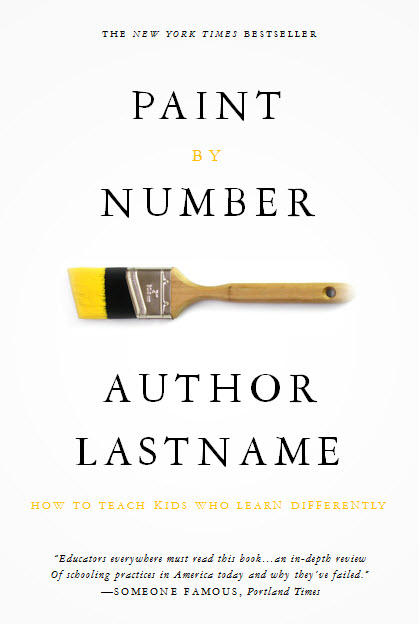
An ebook cover is the same cover you would put on a paperback, shrunk down to the size of a phone screen. You don’t need to pay a designer or buy expensive software to make one. A free online editor, a free template and an hour or two will get you a cover that works on a retail page, as long as you size it correctly and check it at thumbnail size before you upload.
Start with the right size
Kindle Direct Publishing recommends an ebook cover that is 1600 pixels wide by 2560 pixels tall. That is a 1.6 ratio, and it is the number to remember. KDP’s minimum height is 1000 pixels, but the bigger file gives the store a sharp image to scale down. Save the cover as an RGB JPEG, because RGB is what screens use and it is the format the ebook upload expects.
Here is a detail most guides skip. A 5 by 8 inch paperback has the same 1.6 shape, so a cover built at 1600 by 2560 can carry over to a print edition with only minor adjustments. The ratio is the same, even though the pixel counts are not.
Step one, pick a layout that fits your genre
Before you open an editor, look at the bestsellers in your category and note what they share. Check where the title sits, how much of the image is art and how much is type, and whether the author name is big or small. Your cover doesn’t need to copy them, but it should look like it belongs on the same shelf. The free templates for Word give you six layouts to start from, so you can see a finished composition before you build your own.
Step two, build the cover in the online editor
Open the free online cover creator and set the canvas to 1600 by 2560 pixels. Upload your image, or start from a background, and position it so the main subject sits in the upper two-thirds of the frame, where the eye lands first. Keep important art away from the edges, because listings and reader apps sometimes crop them.
Use only images you have the rights to. A stock photo with a standard license is fine for a cover, but check the license page and save a copy of it, because a rights question can come up long after you publish.
Step three, set the title and author name
Use one display font for the title and one plain font for the author name. Make the title the largest element on the cover, and place it where it doesn’t fight with the subject of the image. Spell the title and author name exactly as they appear in your KDP details, because a mismatch looks careless to readers. Fonts from the genre font list are a safe place to start.
Step four, check the cover at thumbnail size
Shrink the image until it is about the width of a thumbnail, then look at it from arm’s length. Can you read the title? Does the cover still say what genre it is? If the title disappears, enlarge it, thicken the font, or add a plain panel behind it. Many free ebook covers fail at this step because they look sharp on a large monitor and turn to mush on a phone.
Step five, export a file the store accepts
Export the cover as a JPEG at 1600 by 2560 pixels in RGB, at high quality. Name the file clearly, such as mybooktitle-ebook-cover.jpg, so you can find it when you upload. Open the exported file at full size to confirm there is no cropping and no blurry text. Then upload it in the cover section of your book details on KDP. Check the preview on a phone as well as on a desktop.
Free tools that cost nothing
The free online editor is enough for most ebook covers. If you want a desktop app, GIMP is free and open source, and it can do everything the online editor can do and more. Canva has a free tier with templates, but the free fonts and images vary, so check the license for each element before you use it on a book you sell. Whichever tool you pick, keep the layered master file so you can update the series name or the title later without rebuilding the whole cover.
Common mistakes with free cover tools
The biggest mistake is using an image without a commercial license. The second is a title that is too small for the thumbnail. The third is a cover that uses a different font for every line. Most of the fix is picking one display font, one plain font and one dominant image, and then stopping. The fourth is an oversized file. A high quality JPEG at 1600 by 2560 pixels is enough, and a huge uncompressed image only slows the upload and the preview without making the cover look any better on a phone.
When a free cover needs a second opinion
If the cover works at thumbnail size and matches the shelf, it is good enough to publish. If it doesn’t, show two or three options to a few readers in your genre and ask which one they would pick up. Their answers will tell you more than another evening of tweaking. The 7 unbreakable rules of professional book cover design list the checks that catch most of the common problems before a reader sees them.
